Turning a web page into Markdown is the first step in a RAG flow, not the last. Before you add a page to a knowledge base, check whether the read worked. Then check what the returned text means and which page signals were there.
Put this check before indexing. It is quick to review and makes a useful record. It does not prove that a page is correct, can rank, or can be reused for every purpose.
Short answer: read the URL and record its status. Inspect HTML signals only when HTML is available. Then route the page to review, retry, or exclusion.
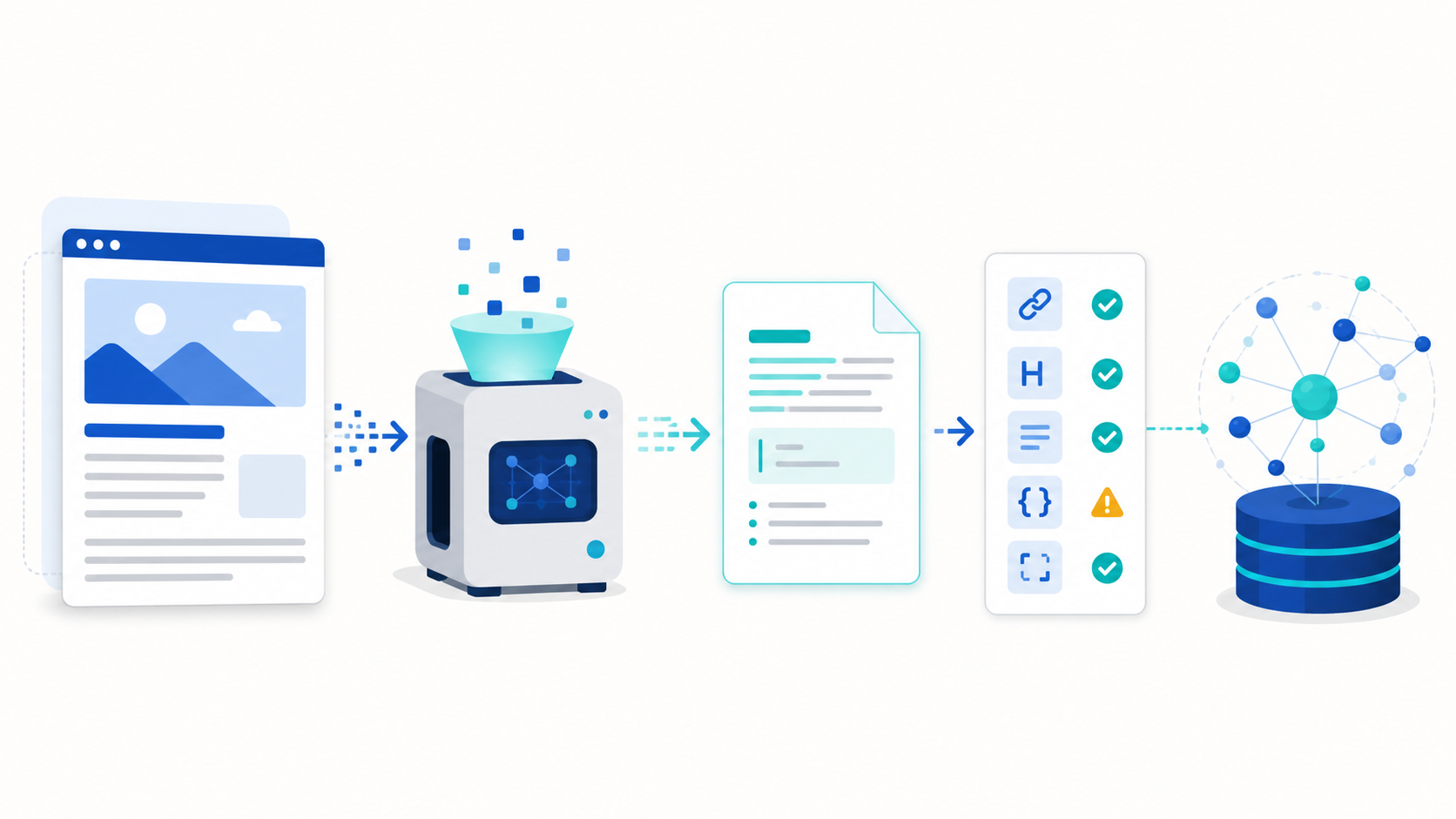
Figure 1. The audit records the extraction before a page enters a knowledge base.
Why this check comes before indexing
An ingestion job that accepts every URL cannot tell these outcomes apart:
- a successful content read.
- a thin navigation page with little useful text.
- an access challenge or error page.
- a JavaScript page that needs rendering.
- a file that needs file reading rather than HTML.
- a page whose HTML signals were unavailable.
If the flow chunks and embeds all of them, a weak record can look like a well-read source. That can add bad context to the index. The model cannot recover a status or limit that the source record never kept.
Keep facts apart from conclusions
The SearchCans Reader API can return Markdown from a public URL. When the request includes HTML, the team can check page signals. These include a canonical URL, H1 headings, a meta description, and JSON-LD.
Those signals help, but they have limits.
| Signal | What it can show | What it cannot prove |
|---|---|---|
| Read status | Whether the request returned content | Whether the content is accurate or legally reusable |
| Markdown length | Whether there is enough text to check | Trust, quality, or rank chance |
| Canonical URL | A canonical signal in returned HTML | Final indexing or search-engine choice |
| H1 and page summary | Basic signals in the returned HTML | Full technical SEO compliance |
| JSON-LD | Structured data is there and can parse | A rich result or AI citation |
If the Reader response has no HTML, say the HTML signals are unknown. Do not claim that a canonical URL or structured data is missing.
Follow a four-step audit
1. Start with the least-cost read
Use a standard Reader request first. It is often enough. Do not enable rendering or a higher-cost path until you need it. Record the URL, status, title, Markdown length, and read setting.
If the response has the needed content, stop there. A stable flow starts with the smallest request that can answer the task.
2. Request HTML when you need page signals
Markdown is enough for some page reviews. Request HTML for a basic source or on-page check. Then report only what the response has:
- canonical URL.
- H1 count and text.
- page-summary presence and length.
- JSON-LD count and parse status.
3. Escalate only when the page needs it
Some pages put key content behind JavaScript. Others need a different access level. Use this order:
- Standard extraction.
- Rendering when relevant text is missing.
- A higher access tier after an empty or blocked result.
- Stop at the first configuration that returns the needed content.
Record the working setup for that domain. Do not send every URL through the highest-cost option by default.
4. Route the page with an explicit decision
| Result | Next action |
|---|---|
ok with solid Markdown |
Review the source, then chunk and index |
ok with thin or irrelevant Markdown |
Send to human review or exclude |
empty or error |
Do not ingest; keep status and retry policy |
| HTML unavailable | Keep HTML findings unknown, not negative |
| Invalid JSON-LD | Send to a separate data-markup review |
A clean read does not make a page a strong source. A page with imperfect metadata can still have useful information. The audit keeps those choices apart.
Store a small check record
Keep a reviewable object for each URL.
{
  "url": "https://example.com/article",
  "status": "ok",
  "markdown_length": 18420,
  "render_mode": "standard",
  "canonical": "https://example.com/article",
  "h1_count": 1,
  "meta_description_status": "present",
  "jsonld_invalid": 0,
  "ingestion_decision": "review_then_index"
}
Do not store an API key or raw account profile in the record. For a costlier batch, add a safe note with the requested page count, actual page count, and calls-at-once cap.
Use account state for bigger jobs
Before a big batch, check the SearchCans Account API. Use the credits and Parallel Lanes to set a safe page and worker count. Parallel Lanes are calls that can run at the same time.
The rate-limit guide explains the limit. The final audit should report whether it ran, limited, or stopped. It must not expose an account name, credentials, or the raw response.
For a related upkeep problem, see Automate Web Content Updates for Fresh RAG Pipelines. That guide focuses on freshness. This check asks whether a newly read page can enter the flow at all.
How this helps RAG, SEO, and GEO groups
For RAG, the check links an answer back to the URL and read result. That makes it easier to refresh a source, look into a poor answer, or remove a failed page.
For SEO and GEO groups, the same check can find issues. It may show an unknown canonical signal, no H1 in the returned HTML, an empty page summary, or invalid JSON-LD. Check the page source and search tools before you say they affect results.
Common questions
Q: Does successful Markdown extraction mean the page is ready for RAG?
A: No. It means the flow received text. Check fit, trust, freshness, and use rights before you index the page.
Q: Should every URL use JavaScript rendering?
A: No. Start with a standard read. Use rendering only when needed page content is missing and the extra cost is worth it.
Q: Does missing HTML mean a page has no canonical URL?
A: No. It means this check had no HTML to inspect. Record the signal as unknown, not missing.
Run a Reader audit with SearchCans
The SearchCans Reader SEO Audit Skill provides a focused one-URL flow. It checks read state and HTML signals that are present.
npx skills add https://github.com/SearchCans/searchcans-skills --skill searchcans-reader-seo-audit
Read the Reader API documentation for request options. New accounts can sign in and check Dashboard → Free Redemption Codes. The page lists the current weekly test credit code.